

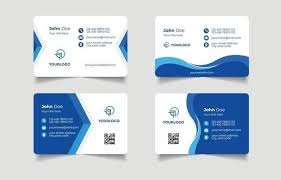
Convert Business Card Logos into Vector Files | Professional Vector Conversion
Table of Contents
- Introduction to Business Card Logo Vector Conversion
- Why Convert Business Card Logos into Vector Files?
- Step-by-Step Process of Converting Business Card Logos into Vector Files
- Benefits of Vector Logos for Business Cards
- Best Tools for Creating Business Card Logo Vector Files
- Common Mistakes to Avoid
- Get Professional Help from Quality Digitizing
- Conclusion
Introduction to Business Card Logo Vector Conversion
A business card is often the first impression of your brand, and the logo printed on it represents your company’s identity. However, many businesses start with low-resolution images or raster logos that lose clarity when resized. This is where the concept of a Business Card Logo Vector becomes essential. Converting your logo into a vector format ensures it remains sharp, clean, and scalable, no matter how large or small the print size.
At Quality Digitizing, professional designers use advanced vector conversion techniques to transform ordinary logos into high-quality vector artwork, ensuring crisp and professional-looking business cards.
Why Convert Business Card Logos into Vector Files?
Vector files use mathematical equations to create shapes and lines, making them resolution-independent. Unlike raster images (JPEG, PNG, BMP), which pixelate when enlarged, a Business Card Logo Vector remains flawless at any scale. This is particularly important for business cards that require precision printing and high-quality finishes.
Some major reasons to use vector logos for business cards include:
- Perfect scaling without losing image quality.
- Ease of editing and color adjustments.
- Compatibility with all printing machines and formats.
- Professional and consistent branding across all marketing materials.
According to Wikipedia’s overview on vector graphics, vectors are ideal for logos, signage, and branding materials because they maintain perfect geometry even when resized.
Step-by-Step Process of Converting Business Card Logos into Vector Files
1. Scanning or Uploading the Logo
Start by scanning your existing logo from the business card at a high resolution (300 DPI or higher). Alternatively, upload a digital copy if you have one. This image will serve as the base for creating your Business Card Logo Vector.
2. Tracing the Design
Using vector software such as Adobe Illustrator or CorelDRAW, trace the outline of your logo. This process converts your bitmap logo into vector paths and shapes that can be resized or edited easily.
3. Cleaning and Refining the Artwork
Once the trace is complete, clean up unnecessary anchor points, smooth edges, and adjust proportions. Pay attention to font alignment and spacing to ensure your Business Card Logo Vector looks precise and balanced.
4. Applying Colors and Effects
Reapply your brand’s color palette using Pantone or CMYK codes for printing accuracy. Avoid unnecessary gradients that may not print well. Always ensure your logo colors match across all branding materials.
5. Saving in Multiple Formats
Export the final artwork in different vector formats like AI, EPS, PDF, and SVG. Having multiple file types ensures your Business Card Logo Vector is compatible with all printers, designers, and marketing agencies.
Benefits of Vector Logos for Business Cards
Creating a Business Card Logo Vector offers multiple advantages that go beyond just clarity and sharpness. Some of the most valuable benefits include:
- Professional Appearance: Vector logos give a polished and high-end look to your business cards.
- Consistency: Every time you print or resize your logo, it maintains perfect proportions.
- Brand Longevity: Vector logos can be reused for banners, apparel, websites, and other materials.
- Easy Editing: Designers can quickly adjust color or layout without losing quality.
- Smaller File Size: Vector files are often smaller and faster to upload or share with print shops.
According to industry experts featured in the Textile World Magazine, vectorization plays a vital role in achieving professional-quality prints across multiple mediums.
Best Tools for Creating Business Card Logo Vector Files
Professional designers rely on industry-standard tools to create vector logos. Some of the most popular options include:
- Adobe Illustrator
- CorelDRAW
- Inkscape (Free alternative)
- Affinity Designer
- Vector Magic (for automated tracing)
At Quality Digitizing, experts use advanced vector software combined with manual precision to ensure your Business Card Logo Vector looks flawless across all print formats.
Common Mistakes to Avoid During Vector Conversion
While creating a Business Card Logo Vector, beginners often make some avoidable mistakes. Here’s what you should look out for:
- Using low-quality images as references.
- Not simplifying overly detailed artwork.
- Ignoring alignment and spacing issues.
- Incorrect color profiles for printing.
- Exporting only one file format instead of multiple.
Avoiding these errors ensures that your business card prints are sharp, clean, and professional-looking every time.
Get Professional Help from Quality Digitizing
Creating a Business Card Logo Vector requires both design expertise and an understanding of print production standards. If you’re unsure how to handle the process, the skilled team at Quality Digitizing can help you convert your existing business card logo into a perfect, print-ready vector file. Their services are affordable, accurate, and tailored to ensure your brand’s visual consistency.
Conclusion
Converting your business card logos into vector files is an investment in professionalism and brand quality. A high-resolution Business Card Logo Vector allows you to print, scale, and edit your logo without losing clarity. Whether you’re updating your business stationery or preparing new marketing materials, always rely on expert vectorization to maintain your brand identity. Visit Quality Digitizing today to get started with expert logo vector conversion services.