
Table of Contents
- Introduction: What Is Illustrator to Embroidery Conversion?
- Understanding File Types: Illustrator vs. Embroidery Formats
- Preparing Illustrator Artwork for Embroidery
- Step-by-Step Process for Illustrator to Embroidery Conversion
- Best Software for Illustrator to Embroidery Digitizing
- Expert Tips for High-Quality Embroidery Output
- Common Mistakes to Avoid
- Professional Illustrator to Embroidery Services
- Conclusion
Introduction: What Is Illustrator to Embroidery Conversion?
Illustrator to Embroidery conversion is the process of turning vector artwork created in Adobe Illustrator into stitch-ready embroidery files. This transformation allows designers and brands to reproduce digital artwork on garments, hats, uniforms, and promotional items using embroidery machines.
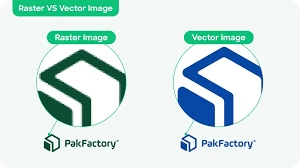
Since Illustrator files are vector-based, they offer sharp lines and clean curves. However, embroidery machines cannot interpret vector data directly. That’s where digitizing comes in—converting the design into stitch data that embroidery machines can follow. Whether it’s a company logo or custom artwork, proper Illustrator to Embroidery conversion ensures that every detail appears perfectly stitched.
To learn more about creating vector artwork, visit the official Adobe Illustrator page for detailed resources and tutorials on vector design.
Understanding File Types: Illustrator vs. Embroidery Formats
What Are Illustrator Files?
Illustrator files (AI, EPS, SVG) are vector graphics built from mathematical paths. They are scalable and ideal for print and web use but not suitable for direct machine embroidery.
What Are Embroidery File Formats?
Embroidery file formats such as DST, PES, EXP, JEF, and VP3 contain detailed stitch commands that guide embroidery machines. These files store information about stitch type, direction, density, and thread colors.
Why Conversion Is Required
Embroidery machines cannot read AI or SVG files directly. The Illustrator to Embroidery process translates vector paths into stitches, allowing machines to replicate artwork accurately on fabric. This step ensures that every element—from color fills to outlines—stitches correctly.
Preparing Illustrator Artwork for Embroidery
Before beginning the Illustrator to Embroidery conversion process, you must clean and optimize your artwork. Follow these important steps:
- 1. Simplify the design: Remove gradients, drop shadows, and complex effects. Embroidery relies on solid shapes and clear lines.
- 2. Convert text to outlines: Always change fonts into vector outlines to avoid font compatibility issues.
- 3. Clean up vector paths: Merge overlapping shapes and close all open paths for clean stitch generation.
- 4. Use flat colors: Replace color gradients with flat fills to clearly define embroidery sections.
- 5. Save in a compatible format: Export your artwork as EPS or SVG before importing into digitizing software.
Step-by-Step Process for Illustrator to Embroidery Conversion
Step 1: Import the Vector Design
Once your file is ready, import it into embroidery software that supports vector formats like SVG or EPS. Programs such as Wilcom or Hatch can directly open these files for conversion.
Step 2: Assign Stitch Types
During Illustrator to Embroidery digitizing, each design area must be assigned a stitch type. Common stitches include:
- Satin Stitch: Perfect for borders, text, and narrow details.
- Fill Stitch: Used for large areas with solid fills.
- Running Stitch: Great for outlines or fine lines.
Step 3: Adjust Stitch Direction and Density
Proper stitch direction gives your embroidery texture and dimension. Adjusting stitch density ensures balance—too dense causes puckering, too light causes gaps. A good Illustrator to Embroidery conversion maintains ideal density for each section.
Step 4: Add Underlay Stitches
Underlay stitches strengthen and stabilize fabric. Types include center run, zigzag, and edge run underlays. Choosing the right one depends on fabric type and design complexity.
Step 5: Define Thread Colors
Assign thread colors that match your design palette. Professional embroidery digitizers often use manufacturer color charts for consistency.
Step 6: Preview and Test
Use your software’s 3D preview to ensure clean stitching, correct sequence, and balanced tension. Test the design on a sample fabric before mass production.
Step 7: Export the Embroidery File
Finally, export your design to the correct machine format (DST, PES, EXP, etc.). Save the working file and stitch version separately for editing and future use.
Best Software for Illustrator to Embroidery Digitizing
There are several reliable tools for converting Illustrator to Embroidery files. Some top options include:
- Wilcom Embroidery Studio
- Hatch by Wilcom
- Embird
- Brother PE-Design
- Pulse Digitizing Software
These programs provide advanced features such as stitch simulation, automatic pathing, and real-time previews, ensuring professional embroidery quality.
Expert Tips for High-Quality Embroidery Output
- Always test your embroidery design before full production.
- Use stabilizers appropriate for your fabric type.
- Optimize stitch density and direction for smoother results.
- Minimize thread trims and color changes to improve efficiency.
- Check for proper underlay and compensation to prevent distortion.
For flawless results, consider professional assistance. Skilled digitizers at Quality Digitizing specialize in Illustrator to Embroidery conversion and ensure accurate stitch flow, clean outlines, and precise detailing.
Common Mistakes to Avoid
- Importing uncleaned or layered Illustrator files.
- Ignoring stitch density and direction adjustments.
- Using too many small elements not suited for embroidery.
- Skipping fabric testing before mass production.
- Overlooking color matching or underlay stitching.
Avoiding these mistakes ensures smooth production, improved durability, and professional-quality results in every Illustrator to Embroidery project.
Professional Illustrator to Embroidery Services
If you prefer professional assistance, the experts at Quality Digitizing can help. They offer precise Illustrator to Embroidery conversion services that transform your vector designs into flawless, machine-ready embroidery files.
From corporate logos to complex artwork, their digitizers ensure perfect stitch balance, thread sequencing, and minimal production issues. Get your artwork converted by professionals for consistent, high-quality embroidery results every time.
Conclusion
The Illustrator to Embroidery conversion process combines creativity with technical precision. By preparing clean artwork, using reliable software, and fine-tuning stitch properties, you can achieve exceptional embroidery quality. Whether you’re a designer, clothing manufacturer, or embroidery business, mastering this process enhances both your workflow and final product.
For top-quality results, partner with trusted professionals like Quality Digitizing. Their skilled digitizers transform your Illustrator designs into high-quality embroidery files ready for any fabric or machine.