
Introduction to PNG to Embroidery
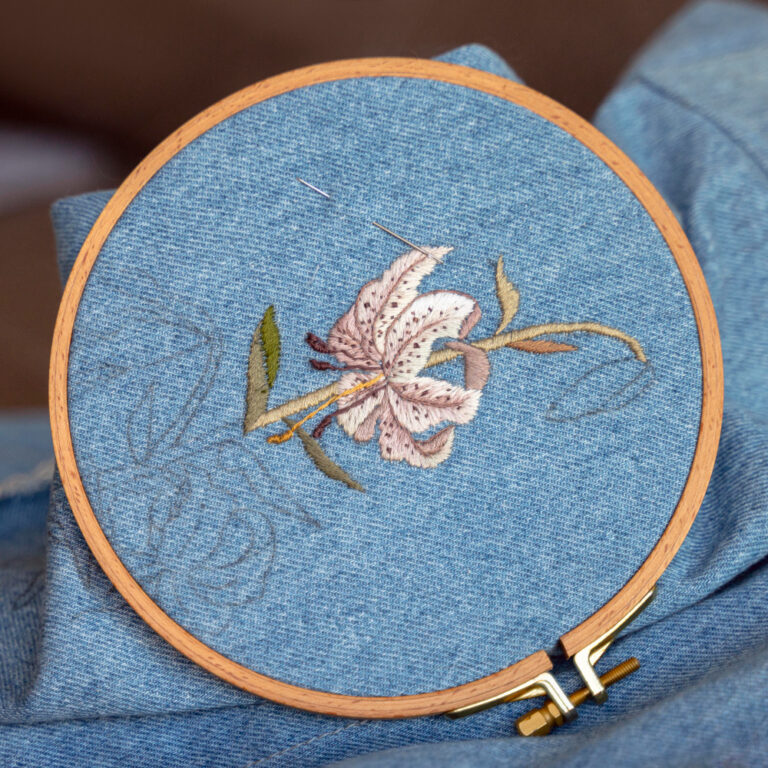
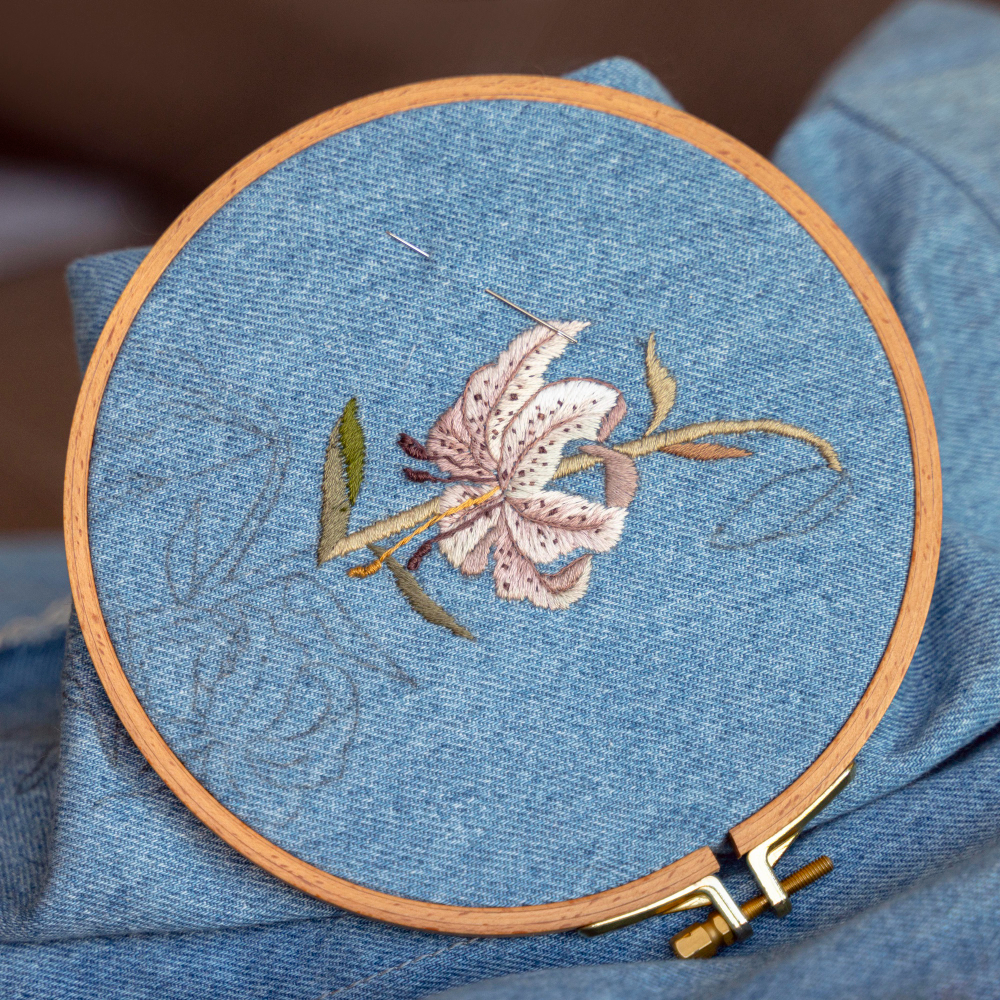
The term PNG to Embroidery refers to converting a PNG image file into a stitch-based embroidery design that embroidery machines can read. This process transforms your digital artwork into something tangible and textured. In this article, you’ll learn the full conversion process and discover helpful external tools to improve your results.
Understanding PNG and Embroidery Files
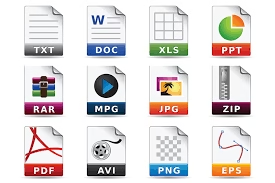
A PNG is a raster graphic format that supports transparency — perfect for logos or isolated graphics. Embroidery machines, however, require stitch files, not pixels. To bridge that gap, we digitize the PNG into formats like DST, PES, or EXP.
For more technical information about the PNG format, visit the official To understand embroidery file standards, explore Embroidery File Formats on Wikipedia.
Why Convert PNG to Embroidery
Converting PNG to Embroidery ensures your designs stitch correctly, maintain quality, and minimize thread issues. Proper digitizing improves machine performance, reduces trimming, and makes the embroidery durable and consistent.
How to Convert PNG to Embroidery
There are several approaches to turning PNG images into embroidery designs:
1. Manual Digitizing Using Software
Professional software like Wilcom Embroidery Studio or Embird lets experts manually create stitches, assign stitch types, and control the sequence of embroidery. This method delivers the highest quality and accuracy.
2. Automatic Converters
Free or paid automatic tools can convert simple images quickly. You can try Inkscape (with the Ink/Stitch plugin) to automatically convert vector or PNG artwork into embroidery stitch paths. However, this method often requires manual corrections.
3. Professional Digitizing Services
For precise and commercial-grade embroidery results, it’s best to hire professionals. You can explore trusted services such as Quality Digitizing for fast, accurate conversions.
Step-by-Step Conversion Process
- Upload a high-resolution PNG file.
- Open it in your digitizing software or send it to a professional digitizer.
- Set the design size and select fabric type.
- Define stitch areas, direction, and density.
- Save in a compatible format such as DST, PES, or JEF.
- Test the embroidery on a sample fabric.
Common Problems & Fixes
- Blurry PNG: Use a higher-resolution version or vector source for better edge detection.
- Too many colors: Simplify gradients before conversion.
- Stitch errors: Test stitch-outs and adjust density or underlay.
Best Practices
- Always use transparent background PNGs for clean conversion.
- Save test stitch files before large production runs.
- Use professional digitizing software or verified services for accurate results.
Recommended Resources
For detailed tutorials and embroidery design tips, you can also check out:
Conclusion
Converting PNG to Embroidery combines creative art with precision technology. Whether you do it yourself using tools like Wilcom or Inkscape, or prefer outsourcing to experts like Quality Digitizing, always prioritize clarity, stitch accuracy, and proper testing for the best embroidery outcomes.