
Table of Contents
- Introduction
- Why Brother Embroidery Logo Conversion Matters
- Understanding Brother Embroidery File Formats
- Preparing Your Logo for Conversion
- Step-by-Step Brother Embroidery Logo Conversion
- Best Software for Brother Embroidery Logo Conversion
- Common Mistakes to Avoid
- Professional Digitizing Services
- Expert Tips for Perfect Stitch Quality
- Conclusion
Introduction
Brother Embroidery Logo Conversion is the process of transforming a digital logo file into a stitch-ready embroidery format compatible with Brother machines. Whether you run a small embroidery business, manage uniforms, or simply want your brand logo on apparel, converting your logo correctly ensures accuracy, quality, and long-lasting results. This guide explains every step — from file preparation to testing — so you can achieve professional embroidery outcomes on any Brother machine. Learn more about available models directly from the Brother official website.
Why Brother Embroidery Logo Conversion Matters
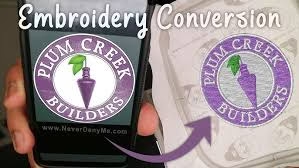
When you create a logo, it’s often in standard image formats like PNG, JPEG, or PSD. However, embroidery machines can’t read these image files directly. They require a special stitch file that dictates the needle movement, color changes, and density. That’s where Brother Embroidery Logo Conversion comes in.
Properly converting your logo ensures your design stitches accurately, maintains its proportions, and looks identical to your brand’s digital artwork. Businesses often rely on experts like Quality Digitizing to convert logos with precision, ensuring top-notch embroidery quality on every fabric type.
Understanding Brother Embroidery File Formats
Before converting your logo, you must understand which file formats work best for Brother machines. Brother embroidery systems primarily use the .PES format, which contains data for stitch type, color, and needle paths. Other compatible file types include:
- PES: The most common Brother embroidery file format.
- DST: A widely used industrial format, compatible across many machine brands.
- EXP: Used for commercial embroidery systems.
- PHC: A format often found in newer Brother models.
For best performance, always use .PES when saving your converted design for a Brother machine.
Preparing Your Logo for Conversion
Before you begin the Brother Embroidery Logo Conversion, your logo must be cleaned and optimized. The cleaner the image, the easier the digitizing process will be. Follow these preparation steps:
- Use a high-resolution logo: Ensure your image is at least 300 DPI to capture details accurately.
- Simplify the design: Remove small gradients or shadows that may not translate well into stitches.
- Choose bold fonts and colors: Fine text or thin outlines can be hard to embroider cleanly.
- Ensure proper contrast: Select thread colors that stand out against your fabric.
If you’re not sure how to optimize your design, you can get help from professionals at Quality Digitizing, who specialize in preparing artwork for embroidery.
Step-by-Step Brother Embroidery Logo Conversion
Converting your logo into a Brother-compatible embroidery file involves several key stages. Below is a detailed process that ensures accuracy and quality:
Step 1: Import Your Logo
Start by importing your logo into embroidery software such as Brother PE-Design or Wilcom Hatch. These programs allow you to view and trace the design manually or automatically. Learn more about Wilcom’s official software features at Wilcom.com.
Step 2: Outline and Digitize
Use the digitizing tools to outline the major areas of your logo. Each part—letters, shapes, and outlines—should be assigned a stitch type such as satin, fill, or running stitch, depending on size and shape.
Step 3: Adjust Stitch Density
Proper stitch density prevents thread breaks and ensures a smooth finish. Dense stitches look solid but may cause puckering if overdone, while light stitches may leave gaps. The goal is to find the perfect balance for your fabric type.
Step 4: Assign Thread Colors
Choose thread shades that match your brand’s color scheme. Brother software provides standard color libraries, making it easy to pick consistent hues across all designs.
Step 5: Save as PES File
Once your logo is digitized, save the file in .PES format to ensure full compatibility with Brother embroidery machines. This file will contain all necessary stitch data, color info, and movement instructions.
Step 6: Test the Design
Always run a test embroidery on similar fabric before full production. This helps you detect minor issues like density errors, misalignment, or loose threads early. Testing guarantees that your final output will be flawless.
Best Software for Brother Embroidery Logo Conversion
Several programs can help you perform Brother Embroidery Logo Conversion efficiently. Here are some of the best options:
- Brother PE-Design: The official Brother embroidery software for editing and digitizing.
- Wilcom Hatch: Ideal for professionals needing precision control over stitches and textures.
- Embird: Great for beginners and intermediate users, offering both editing and lettering tools.
- SewArt: Budget-friendly software for basic conversions and hobby projects.
Each program offers unique features, but for commercial or branding use, many users prefer outsourcing their logo conversion to Quality Digitizing for professional-grade accuracy.
Common Mistakes to Avoid
Even small errors can lead to poor embroidery results. Here are some common mistakes you should avoid during Brother Embroidery Logo Conversion:
- Using low-resolution images with unclear edges.
- Overcomplicating designs with too many color transitions.
- Skipping stitch tests before production.
- Incorrect thread tension or stabilizer use.
- Saving files in the wrong format or at incorrect sizes.
Double-checking these details can prevent wasted fabric, thread, and production time.
Professional Digitizing Services
If you’re short on time or want guaranteed perfection, hiring a professional digitizing service is your best option. Experienced digitizers understand the nuances of stitch density, layering, and fabric behavior, ensuring your logo looks crisp and clean every time it’s embroidered.
Quality Digitizing provides expert Brother embroidery logo conversion with fast turnaround and high-quality results. Their team ensures your logo translates perfectly from digital artwork to stitched design, no matter how complex the details are.
Expert Tips for Perfect Stitch Quality
- Always use the right needle size for your fabric.
- Use stabilizers to prevent fabric puckering.
- Clean and maintain your Brother machine regularly.
- Keep your thread tension balanced for consistent stitching.
- Store your embroidery files in organized folders for easy access.
Conclusion
Mastering Brother Embroidery Logo Conversion allows you to turn any logo into a professional, durable embroidered design. Whether you’re creating branded apparel or personal projects, understanding each step of the process ensures superior results. From file preparation and digitizing to final testing, attention to detail is key.
For those who prefer expert assistance, partnering with professionals like Quality Digitizing guarantees precision, speed, and high-quality stitching every time. Start converting your logo today and bring your brand to life through embroidery!